
ESRI currently supports data streaming from the Geodata Portal within ArcGIS Pro. For use of the dataset in ArcGIS Pro, users can either add data using a URL or use portal item navigation. Instructions for both processes are described below.
Prior to either of these methods, you must do the following, if you have not previously done so:
- Sign up for the Geodata Portal
- Navigate to the NatureServe Geodata Portal and sign in using your Explorer Pro credentials.
Add data to ArcGIS Pro via data URL
The data from the Geodata Portal may be accessed in ArcGIS Pro by adding the data via a URL.
- Open ArcGIS Pro to any map pane
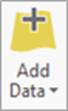
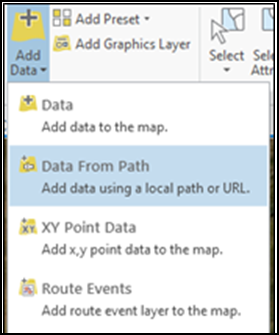
- Click the “Add Data” dropdown arrow (Figure 4).
- Click “Add Data from Path”
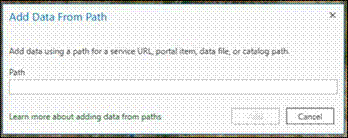
- Enter the location of the feature service under “Path”
This can be found on the NatureServe Geodata Portal item page for the service under “URL”.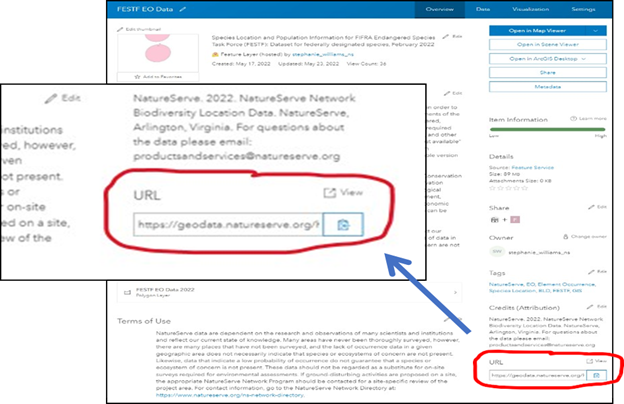
- After entering the URL in the path text box, ArcGIS Pro should detect that the “Service Type” is “An ArcGIS Server Web Service” automatically.
- When you hit “Ok”, you will be requested to sign in to access the data. Click on the button labeled “Explorer Pro” and sign in with your Explorer Pro account.
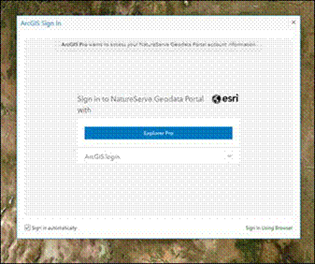
The data should now be added to the map as an interactive feature service.
Add data to ArcGIS Pro via Portal Item Navigation
The licensed dataset can be added to ArcGIS Pro via a folder-like navigation after connecting to the NatureServe Geodata Portal
- Open ArcGIS Pro to any map pane
- In the top right of ArcGIS Pro, you will see one of two buttons, shown below.
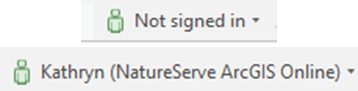
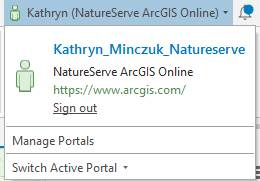
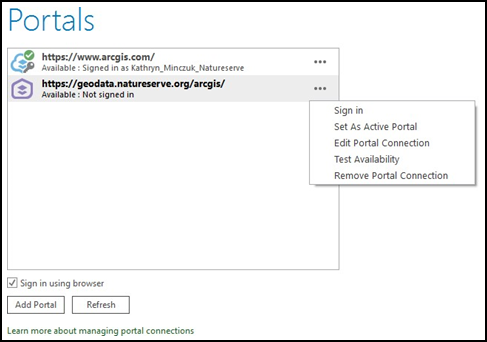
- Click the drop down and select "Manage Portals" (Figure 8)
- In this new pane, click on 'Add Portal
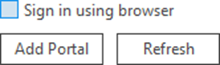
- Enter the URL of the model data portal: https://geodata.natureserve.org/arcgis/
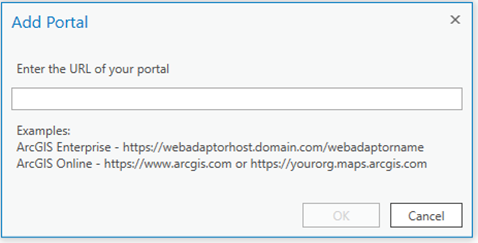
- Hit "Ok"
- The portal will be added to the list you see on this page. Click on the "..." next to the portal connection item and then click on "Sign In".
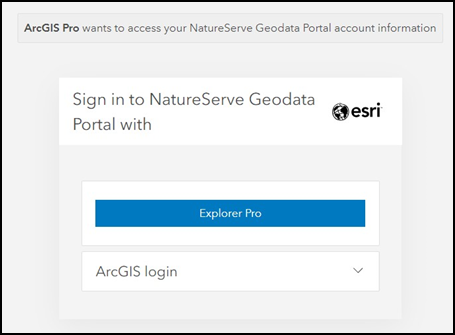
- In the sign in pop-out window, select "Explorer Pro" and then sign in via your explorer pro credentials.
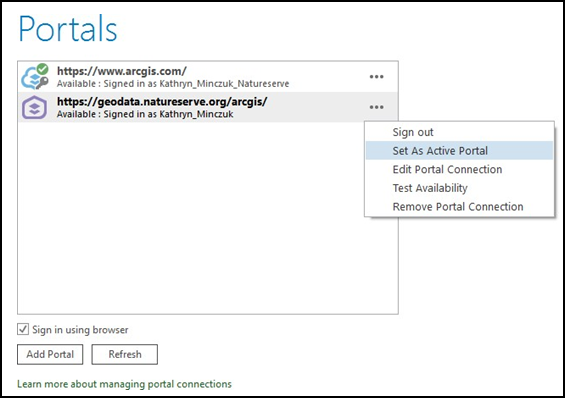
- Click on the "..." again and select set "Set As Active Portal".
- Click the back arrow to return to the map pane.
- Open a Catalog Pane (View → Catalog Pane) and click on "Portal".
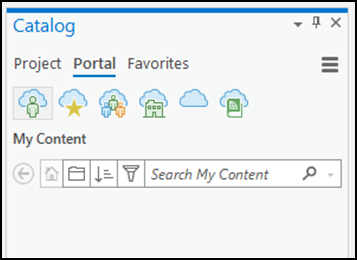
- Click on the 3 people icon to view all the model services by your access groups.
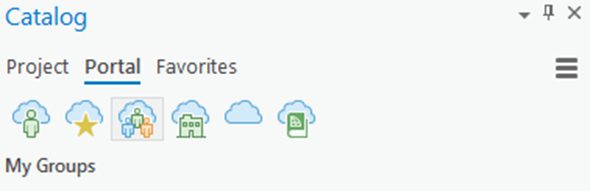
- From here you can add the entire dataset to your map by right-clicking on it or double click to see a list of all the files in the service and add only one to your map. For more details on how to filter and view these data, please see notes about the image services below.
- For Freshwater Models, both a Feature Service and a Map Image Service are available for use. We recommend using the feature service for all data access. The Map Image Service is less compatible with ArcGIS Pro. Please see notes about the Freshwater model services below.