
Authorized users can access occurrence data and species habitat models through a geodata portal and conduct analyses with occurrence data in ArcGIS Pro. Users must first sign up for the geodata portal for access and set up their connection to the portal in ArcGIS Pro.
There are two ways to access licensed datasets through the geodata portal. The simplest way to access the licensed data once your account has been provided access is through the NatureServe Explorer Pro Welcome Page. You will see a link to the datasets below your login name (Figure 1).
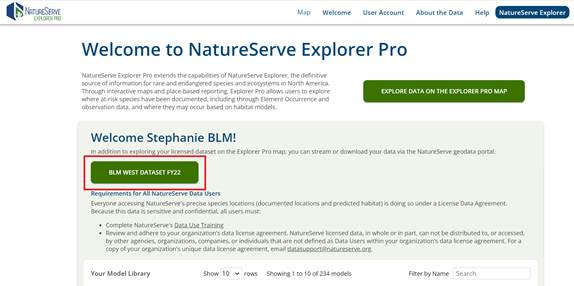
Figure 1. Link directly to the group you have access to in the geodata portal by clicking the green button highlighted in red from the Welcome page. The green button on the upper right will take you to the same data available in the Explorer Pro Mapping Interface.
You will be taken to your group’s access page where you can scroll down to the recently added content section and click on any of the available datasets. Click on View all content to see all available layers (Figure 2).
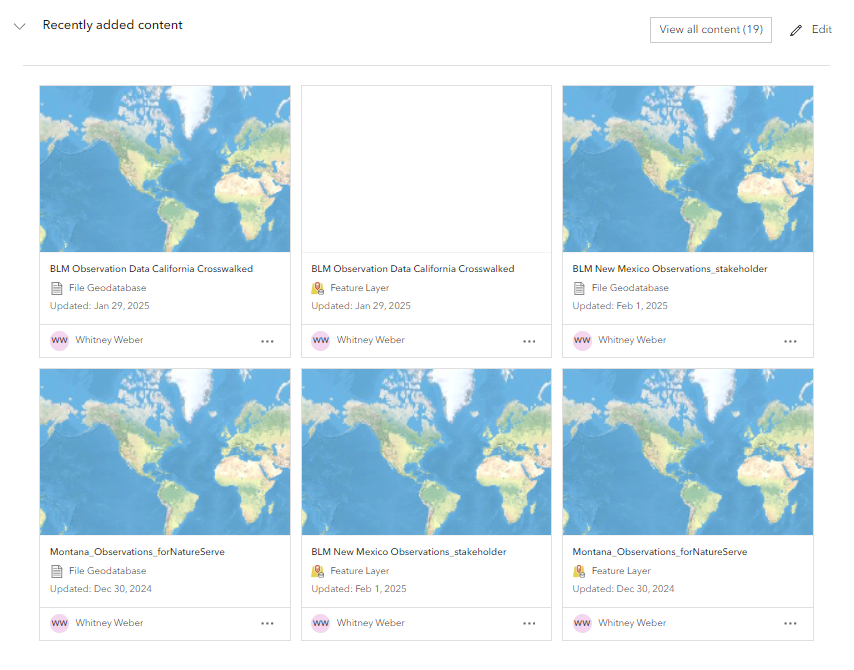
Figure 2. Access your group’s data directly by selecting the ‘View All Content’ in the “Recently added content” section at the bottom of the webpage.
Find the layer you want to view and click on the three dots in the bottom right of the item box (Figure 3). Click on View Details to open the item description or Open in ArcGIS Pro to open the layer in ArcGIS Pro.
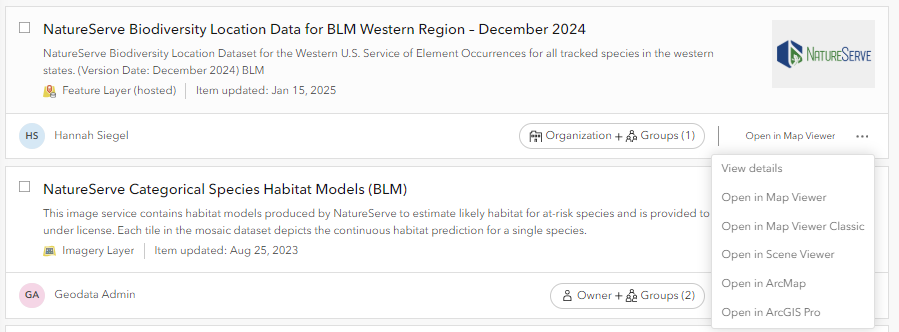
Figure 3. View the details of a layer or open the item in ArcGIS Pro.